Lukla Shots

Capture it. Mark it up. Send it.

A screenshot app for Mac. Grab a region, a window or the whole screen, send it everywhere you need it in one go, and mark it up with arrows, numbered steps, blur and a highlighter that works like a real marker.

The Lukla Shots editor with a screenshot of a web page, marked up with a yellow highlight, an arrow and label, two numbered steps and a blurred line. The preview card shown after a capture, with Annotate, Open, Finder, Copy and Path buttons.
The editor, and the preview card that appears after every capture. Real screenshots of the app.

Five ways to capture

Press a shortcut from any app, or pick from the camera icon in the menu bar. Shortcuts are yours to change, including ⇧⌘4 if you'd like it to replace the macOS one.

Region

Drag over a frozen copy of the screen, so menus and hover states stay put. Hold ⇧ for a square.

⌥⇧4

Window

Click any window to capture it whole, even if other windows cover part of it.

⌥⇧5

Full screen

Captures the display your pointer is on. Include the pointer if you want it.

⌥⇧3

Active window

No clicking: grabs the front window of the app you're in, straight away.

⌥⇧6

Scrolling

A whole web page, or anything that scrolls, as one tall image. See how.

⌥⇧7

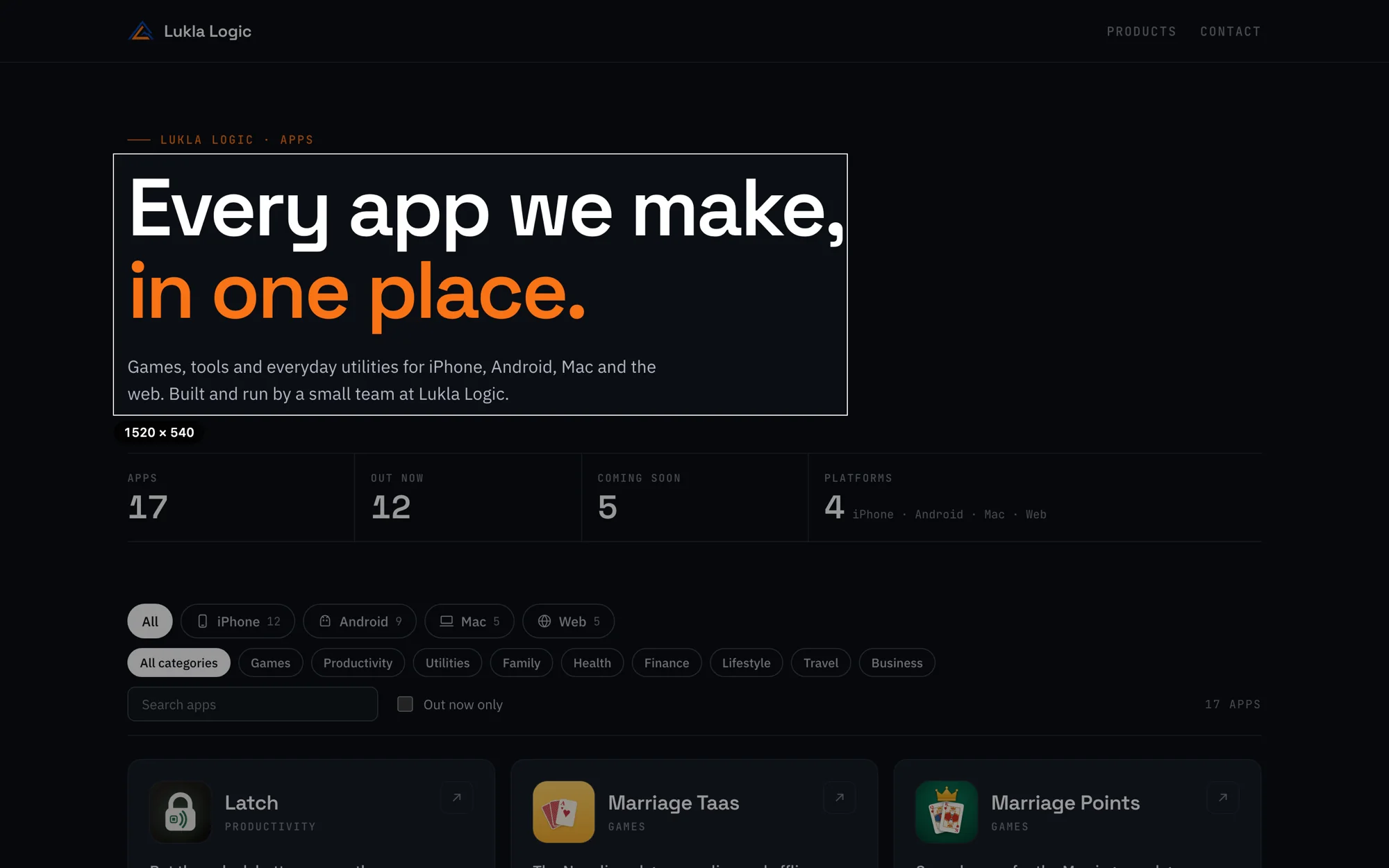
Selecting a region of the screen. The rest of the screen is dimmed and the selection shows its size, 1520 by 540 pixels.
Region. The size in pixels follows your selection. Clicking without dragging captures the window under the pointer instead.
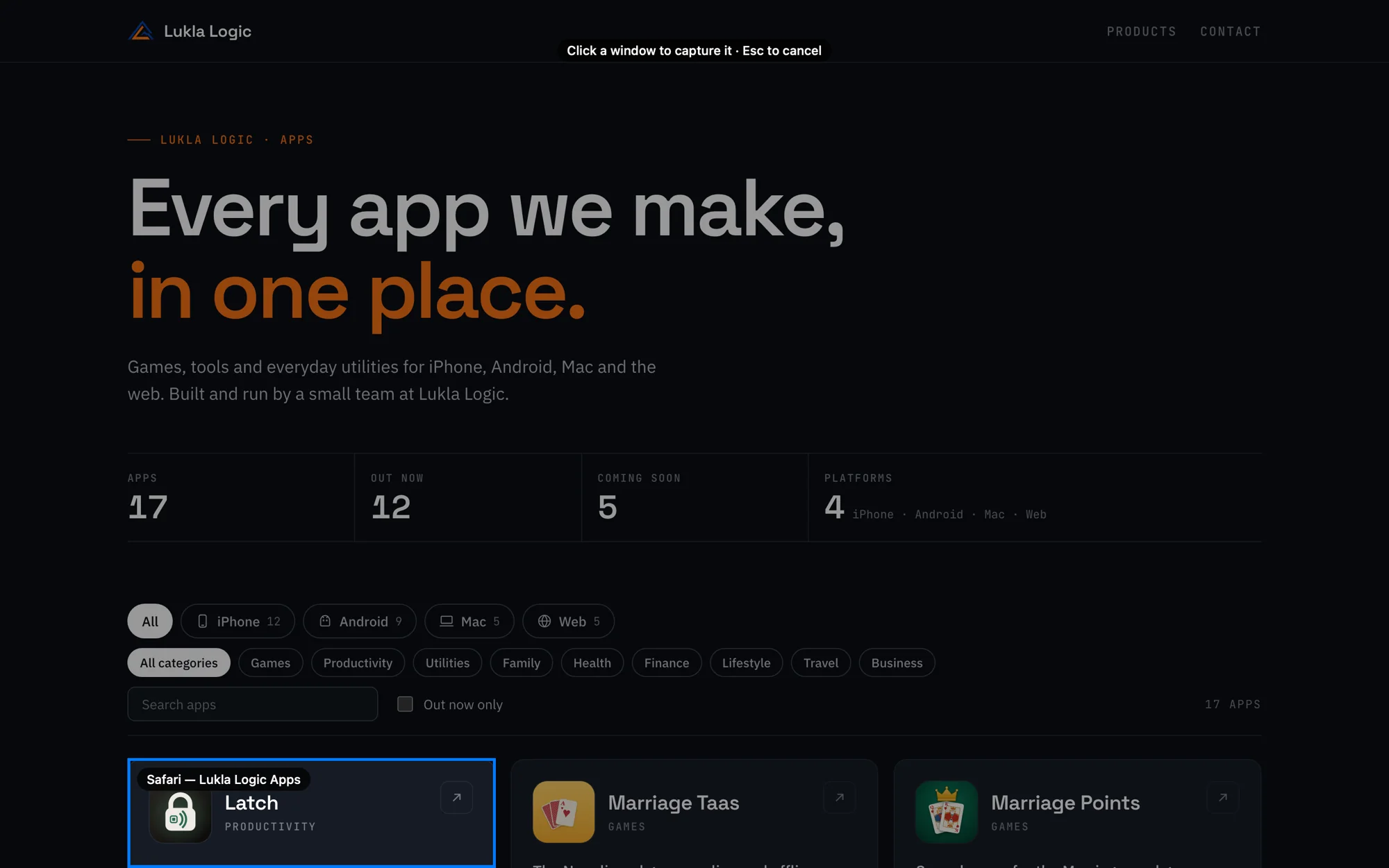
Choosing a window. The window under the pointer is outlined in blue and labelled with its app and title.
Window. The window under the pointer is outlined and named. Esc or a right-click cancels.

The whole page, not just the screen

Scrolling capture turns a page that's taller than your screen into one image: a long article, a full landing page, a chat thread, a spreadsheet.

  1. Choose what scrolls

    Press ⌥⇧7, then drag over the page, or click the browser window.

  2. Lukla Shots scrolls it

    It scrolls a step, waits for the page to settle, and captures, until it reaches the bottom. Click Done to stop sooner, or press Esc to cancel.

  3. One seamless image

    Frames are joined by matching their overlapping rows. A sticky header or toolbar appears once, where it belongs, not repeated down the page.

Works in Safari, Chrome, Firefox and any app that scrolls. To scroll by itself it needs Accessibility permission, which macOS asks for the first time. Without it, you scroll and Lukla Shots stitches as you go.

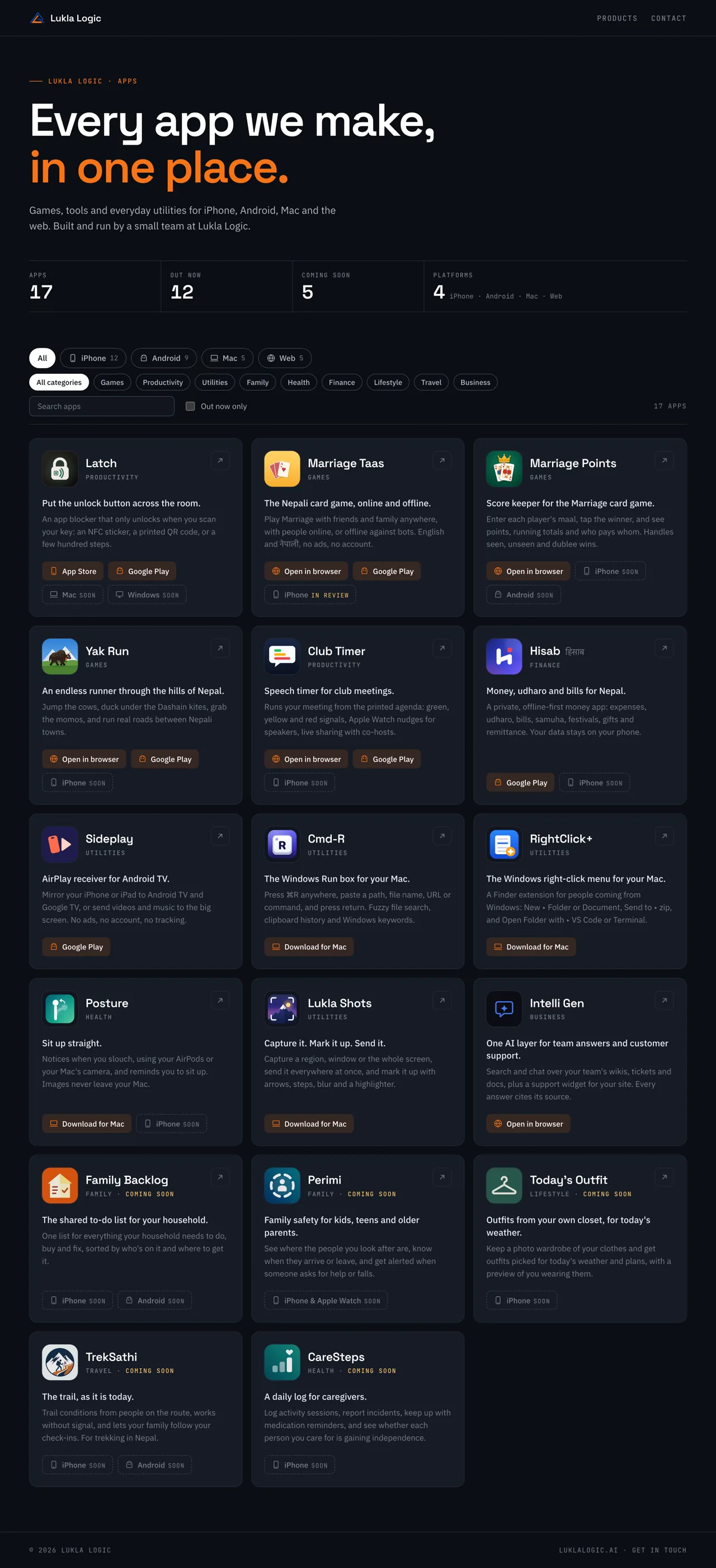
A full-page capture of the Lukla Logic apps page, from the heading at the top through every app card to the footer, as one image.
A real result: apps.luklalogic.ai captured in five scrolls, 2,803 points tall. Its sticky filter bar appears once. Scroll inside the frame to see all of it.

Everywhere you need it, at once

Choose any mix of places for every capture to go. Change them in Settings, or tick them straight from the menu bar.

  • Copy the image to paste into Slack, Mail, a doc or an issue.
  • Copy the file path to paste into Terminal or a code editor. With both on, apps that take images paste the picture and text fields paste the path.
  • Save to a folder as PNG, at full Retina resolution, optionally in a subfolder per app.
  • Open in another editor: Preview, Pixelmator, Photoshop, whichever you choose.
  • Open in the Lukla editor to mark it up straight away.

Names that tell you what's in the file

Files are named from a template, using the app and window you captured, so a folder of screenshots stays readable.

{app} {date} at {time}→Safari 2026-11-02 at 14.05.09.png

{app} - {title} {counter}→Xcode - LuklaShots 0042.png

  • {app}
  • {title}
  • {mode}
  • {date}
  • {time}
  • {timestamp}
  • {counter}

Characters that aren't allowed in file names are removed, gaps left by an empty token are tidied up, and a file that would overwrite another gets “ (2)”.

A preview with the next step in reach

After each capture, a small card appears in the corner for 2 seconds, or however long you set. Hovering keeps it open.

Annotate
Opens the capture in the Lukla editor. Clicking the thumbnail does the same.
Open
Opens it in your other image editor.
Finder
Shows the file, or saves it first if saving is off.
Copy · Path
Copies the image, or the file's path.

Or drag the thumbnail straight into Mail, Slack or a Finder window.

The preview card: a thumbnail, the file name, and Annotate, Open, Finder, Copy and Path buttons.

Mark it up

The editor is part of the app. Every mark stays editable until you save: select it to move it, resize it, recolor it or delete it. Each tool has a one-key shortcut.

  • VSelectMove, resize, nudge with arrow keys
  • AArrow⇧ snaps to 45°
  • RRectangleOutline, or filled to redact
  • OEllipse⇧ for a perfect circle
  • LLine⇧ snaps to 45°
  • PPenSmoothed freehand
  • HHighlighterLike a real marker
  • TTextPlain or on a colored label
  • NNumbered stepsCount up as you click
  • BBlurFor passwords and emails
  • MPixelateA mosaic over anything
  • SSpotlightDims everything else
  • CCropMarks stay editable

Each example below is a real before and after. Press Show original to compare.

Point the way

An arrow, a label and numbered steps turn a screenshot into instructions. Steps number themselves 1, 2, 3 as you click.
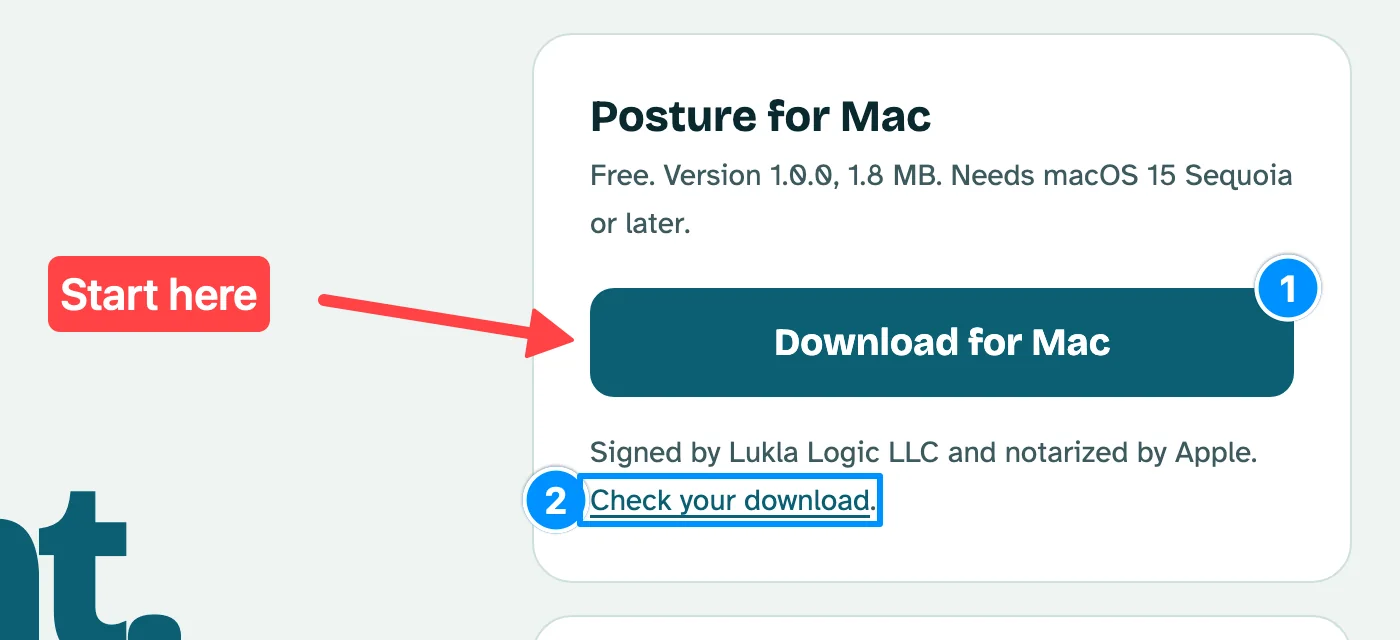
A download button with a red “Start here” label and arrow, step 1 on the button and step 2 on the “Check your download” link, which is boxed in blue.

A highlighter that works like a real one

On a light page it tints the paper and the text stays crisp black. On a dark screen it tints the background and light text stays light. The edges wobble a little and the ends are slanted, like a chisel tip.

Hold ⌃ or Space for a straight stroke, or ⇧ to snap it to 45° steps. Press one mid-stroke to add a straight run, let go to carry on freehand.
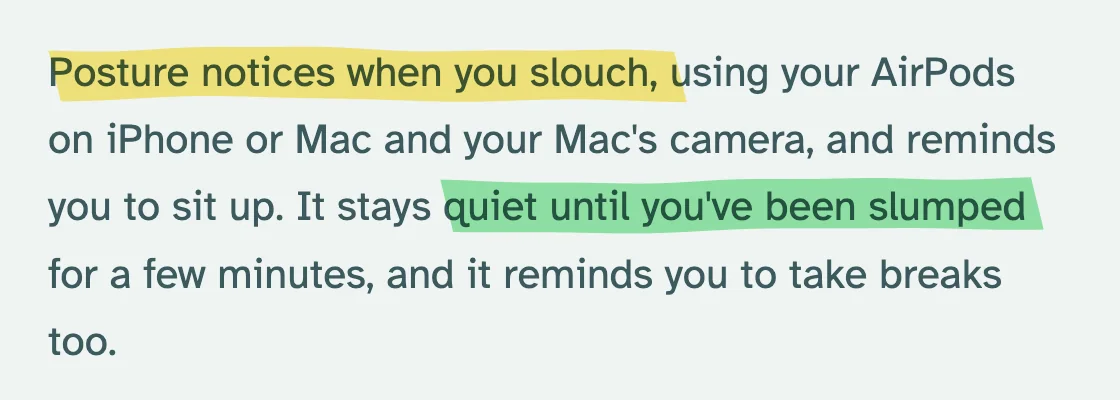

Two phrases in a paragraph of dark text on a light page, highlighted in yellow and green. The text stays sharp.
Light text on a dark page, highlighted in yellow and pink. The dark background is tinted and the text stays light.

Hide what's private

Three ways, from soft to certain: blur, pixelate, or a filled box. Blur and pixelate are flattened into the saved PNG, so the original pixels aren't in the file.
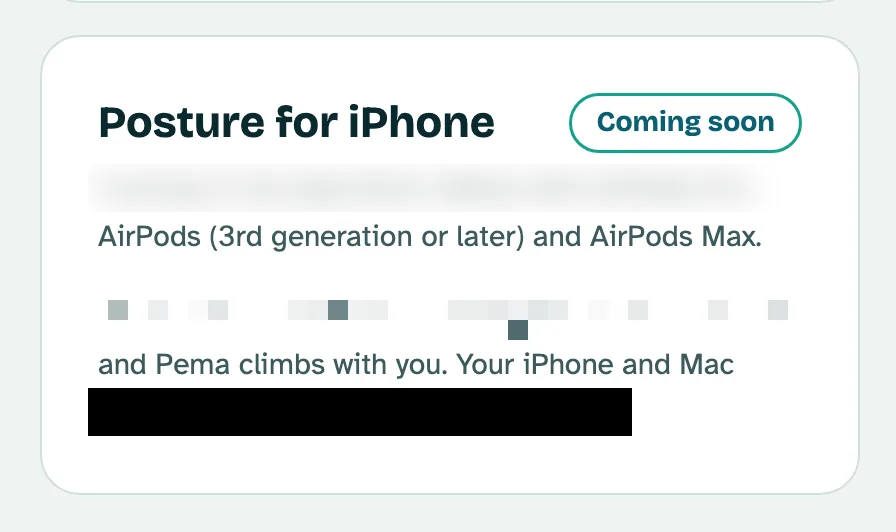
A card with one line blurred, one line pixelated and one line covered by a black box.

Spotlight one thing

Draw a box around what matters and everything else dims, so nobody misses it.
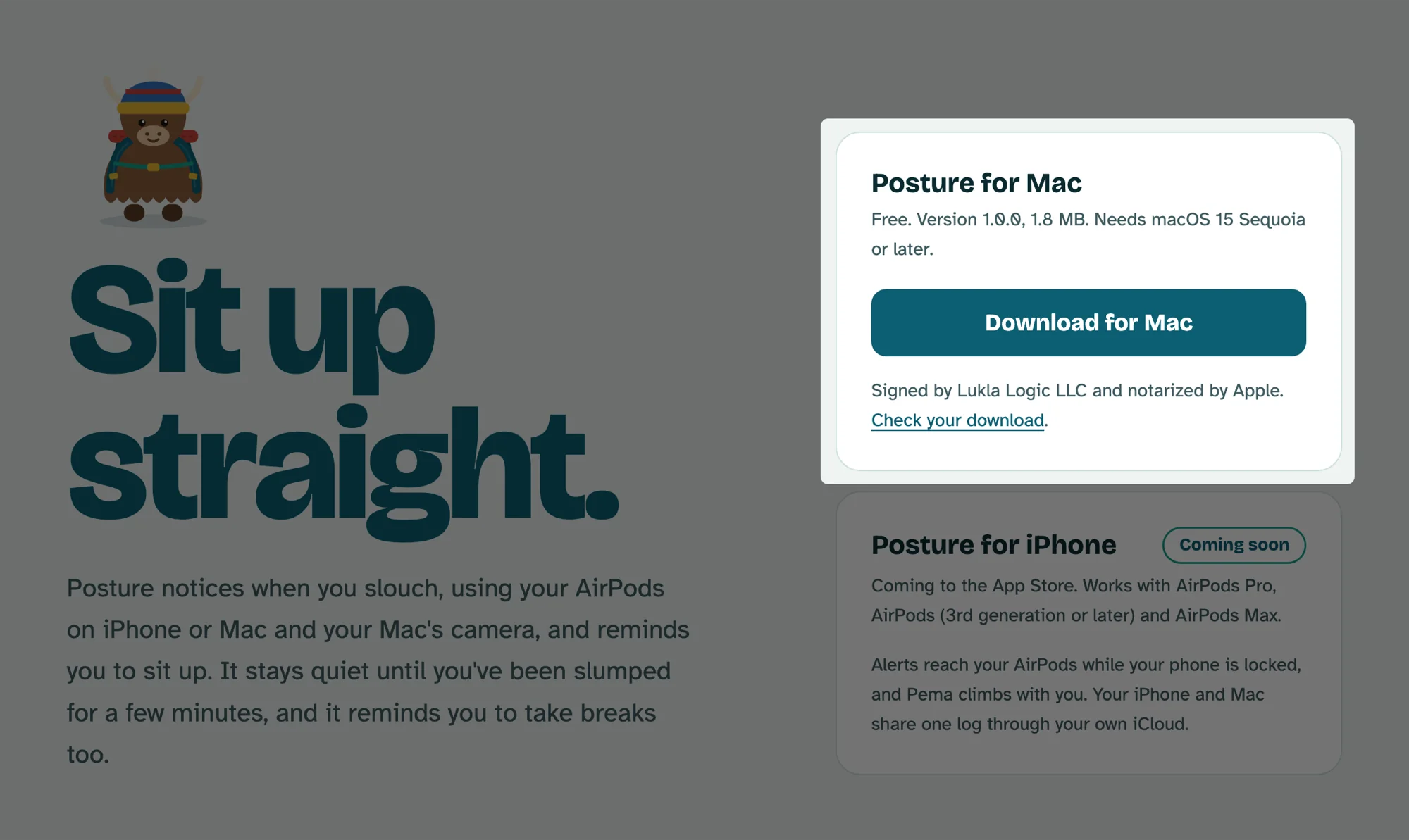
A web page with everything dimmed except the download card, which stays bright.

Circle it, box it, scribble on it

Rectangles, ellipses, lines and a smooth pen, in any color and thickness. Turn on Fill for solid shapes and labels.
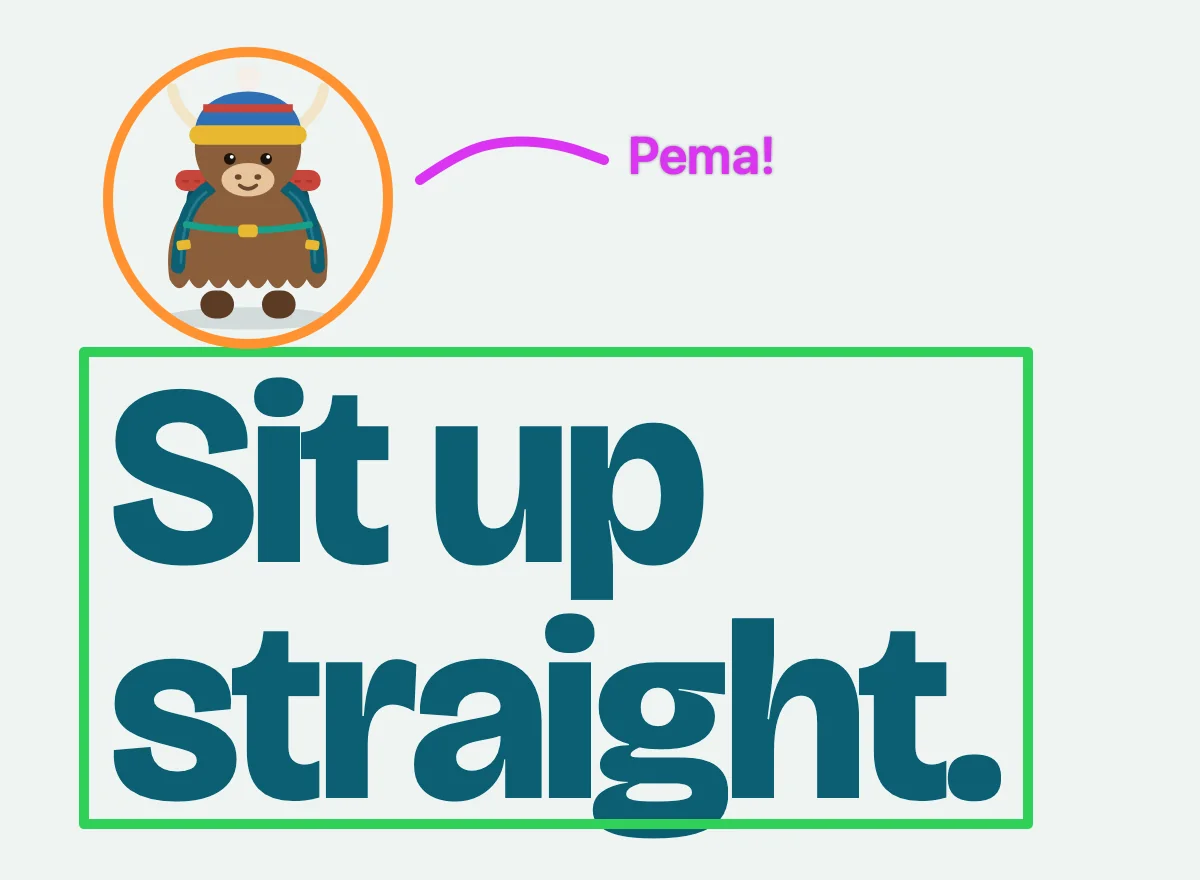
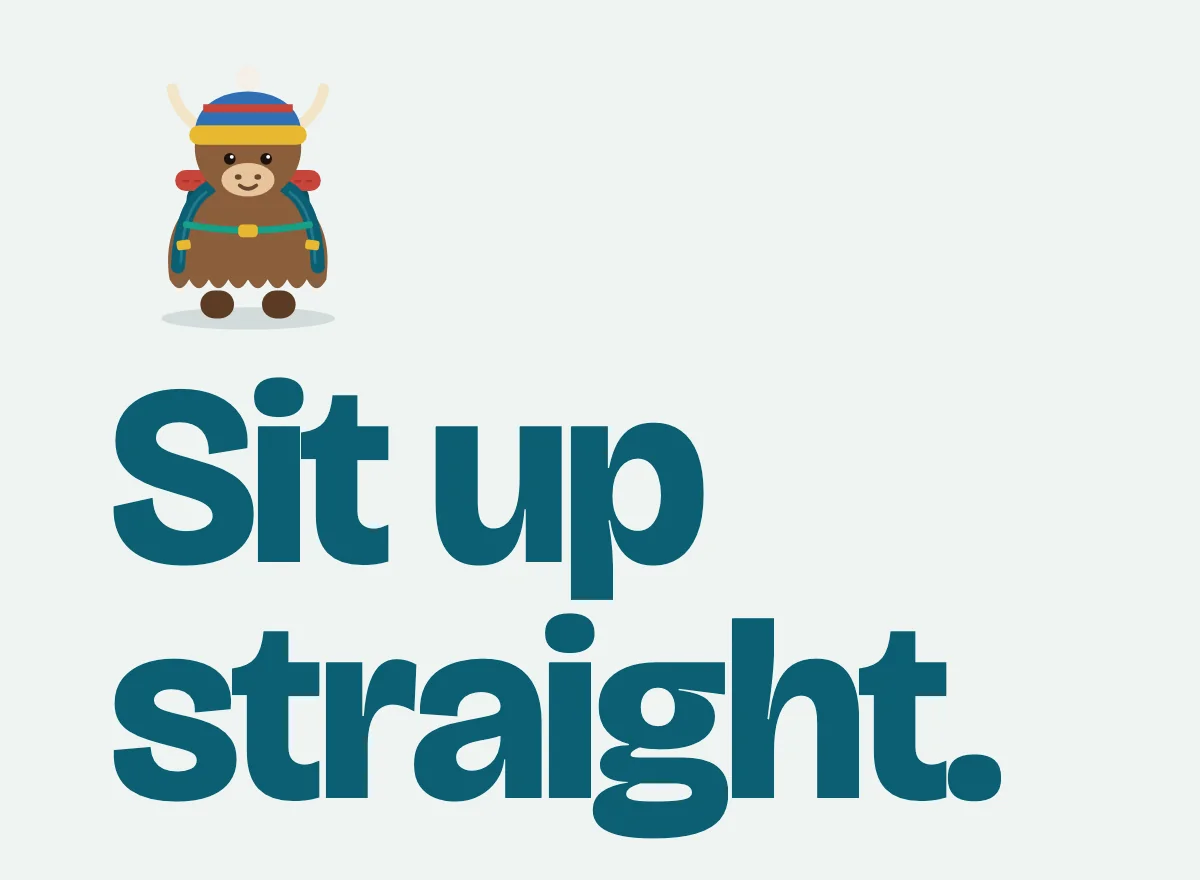
A yak illustration circled in orange with a purple “Pema!” note, and the headline “Sit up straight.” boxed in green.

Undo everything

⌘Z and ⇧⌘Z go all the way back, including crops.

Zoom in for detail

Pinch, or ⌘+ ⌘−. ⌘0 for actual pixels, ⌘9 to fit.

Done in a keystroke

⌘C copies the marked-up image, ⌘S saves over the capture, ⇧⌘S saves a copy.

You can open any image in the editor too: choose Open Image in Editor… from the menu, or Open With › Lukla Shots in Finder.

Set it up your way

Settings has three tabs. Here's each of them, from the real app.

General settings: launch at login, show preview for 2 seconds, shutter sound, pointer and window shadow options, and Screen Recording permission granted.

General

  • Launch at login, so your shortcuts are always ready.
  • Preview on or off, and how many seconds it stays (2 by default).
  • Shutter sound on or off.
  • Mouse pointer in full-screen captures, and window shadows in window captures.
  • Automatic scrolling for scrolling captures, on or off.
  • Updates: check automatically once a day, or check now.
  • Screen Recording and Accessibility status, with buttons to open System Settings.
Output settings: where each capture goes, the save folder, and the file name template with a live example.

Output

  • Where each capture goes: any mix of clipboard, file path, folder and editors.
  • Save folder, with an option for one subfolder per app.
  • File name template: click a token to add it, and see an example name as you type.
  • External editor: the system default for PNG, or any app you pick.
Shortcut settings: a recorder for each capture mode, and the editor's one-key tool shortcuts.

Shortcuts

  • Record a shortcut: click the box and press the keys. Esc cancels, Delete clears it.
  • A warning appears if another app already owns that combination.
  • Giving a shortcut to a second action moves it, so two actions never share one.
  • Shortcuts work from any app and need no Accessibility permission.

Your screenshots stay on your Mac

Nothing you capture leaves your Mac. It isn't uploaded, synced or seen by anyone.

There's no account, no analytics and no tracking. The only thing the app asks the internet is whether there's a new version, once a day. Captures go only where you send them: your clipboard, your folder, your editor. macOS asks for Screen Recording permission because that's how any app reads the screen; Lukla Shots only reads it when you take a capture. Read the privacy policy.

Questions

Can I use ⇧⌘4 like the built-in screenshot tool?
Yes. First turn off the macOS screenshot shortcuts in System Settings › Keyboard › Keyboard Shortcuts › Screenshots, then record ⇧⌘4 for Capture Region in Lukla Shots' Settings.
Why does it need Screen Recording permission?
macOS requires it for any app that captures the screen. Grant it once in System Settings › Privacy & Security › Screen & System Audio Recording, then reopen the app.
Where do screenshots go?
To ~/Pictures/Lukla Shots by default, as PNG at full resolution. Retina captures keep their size information, so they open at the size you saw them.
Does it work with more than one display?
Yes, including displays with different resolutions. Region and window capture work across all of them.
How does it stay up to date?
It checks shots.luklalogic.ai for a new version once a day and offers to install it. Updates are signed, so the app only installs ones from us. You can turn the check off, or check now, in Settings.
What does it cost?
It's free.